 Vextro Lyntra
A slow website costs you visitors, sales and Google rankings. The good news is that most WordPress speed problems come from the same handful of causes, and you can fix them step by step.
Step 1: measure first
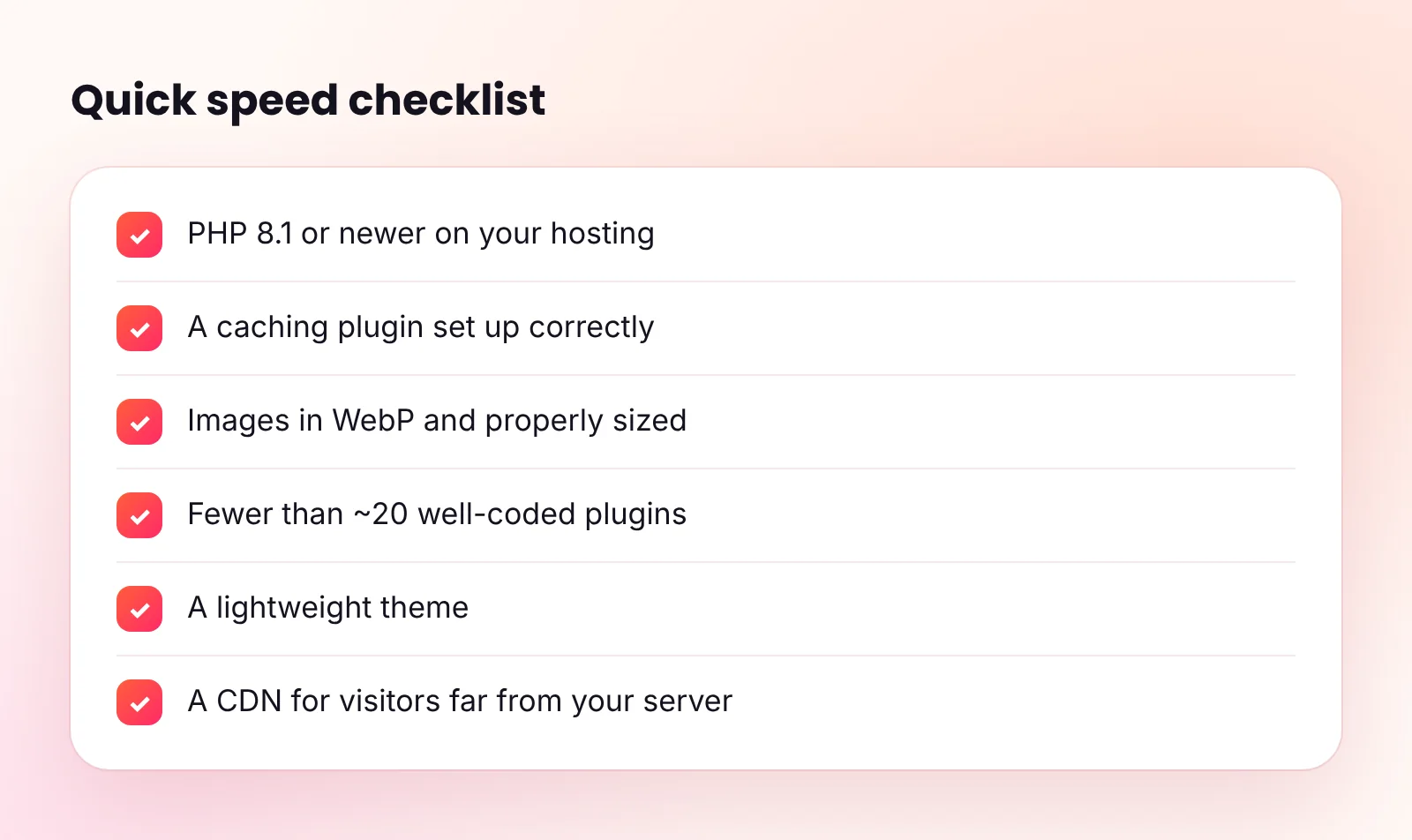
Before changing anything, test your site with Google PageSpeed Insights and a second tool such as GTmetrix. Test your home page and one important inner page (a product or service page), on mobile. Write down the scores and loading times so you can compare later.
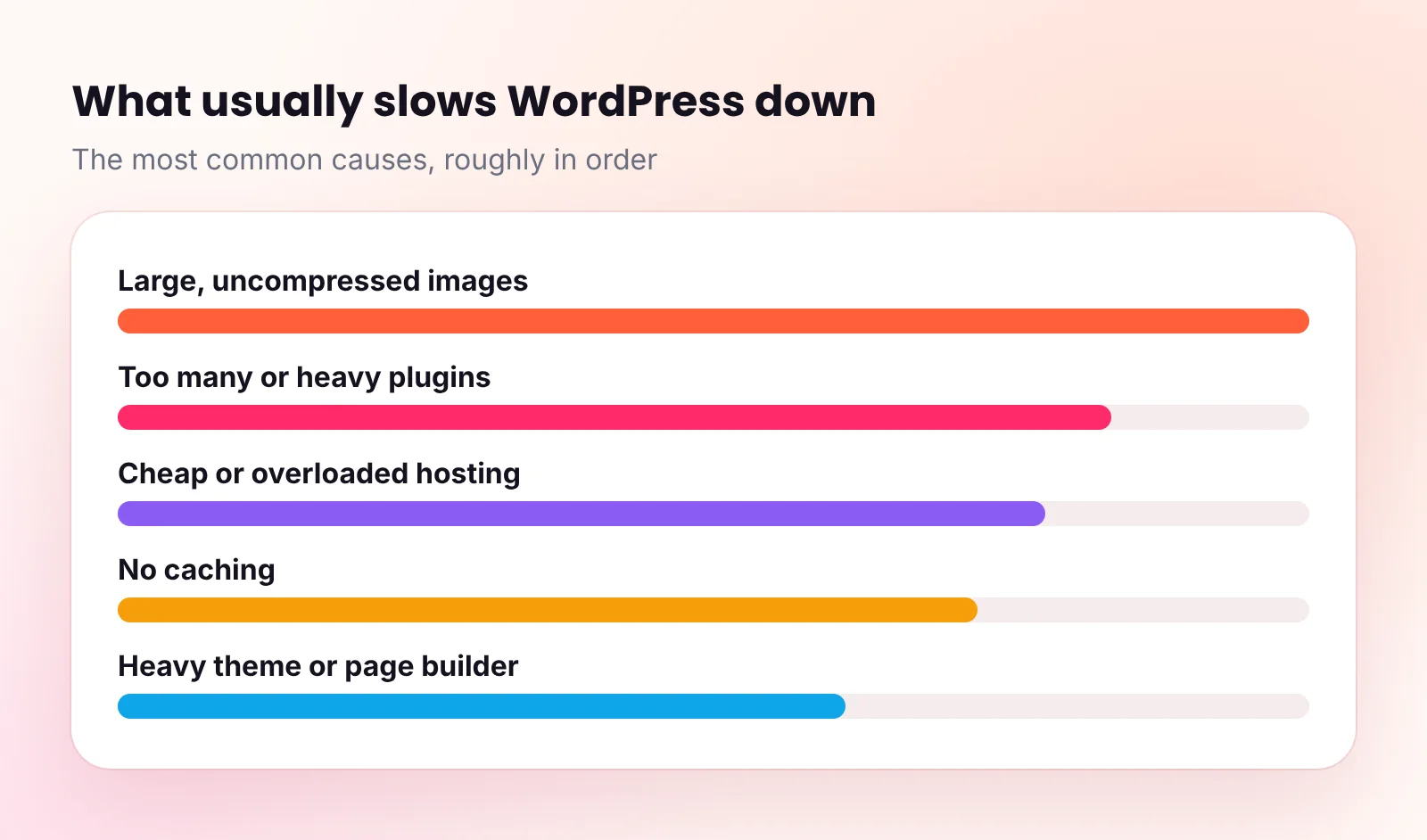
The usual causes
15 fixes that actually work
1. Upgrade your hosting
Cheap, overloaded shared hosting is the most common bottleneck. A good host with modern servers often makes the biggest single difference.
2. Use a recent PHP version
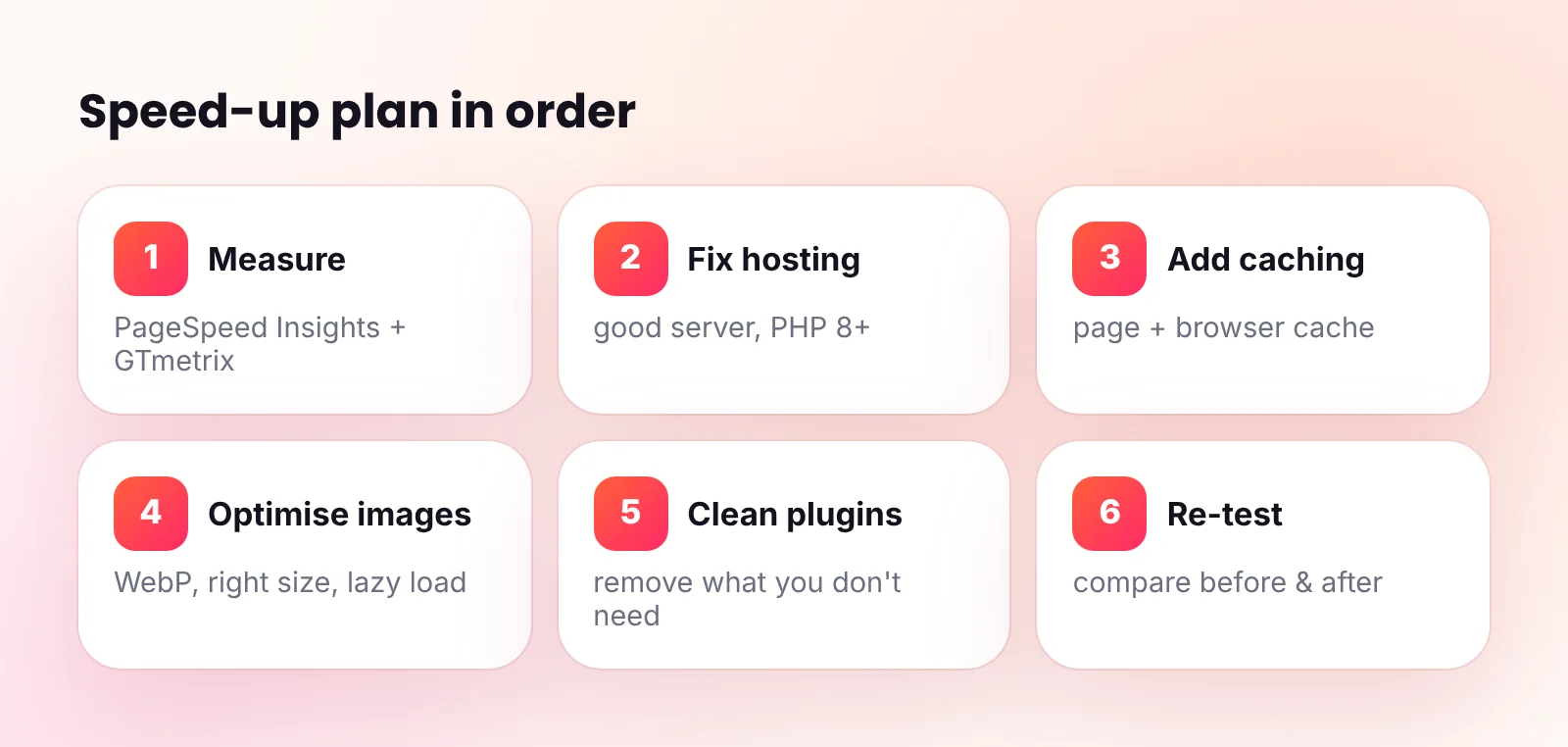
PHP 8.1 or newer is much faster than old versions. You can usually switch it in your hosting panel; test your site after switching.
3. Install a caching plugin
Caching serves ready-made pages instead of building each page from scratch. Popular options include WP Rocket, LiteSpeed Cache (on LiteSpeed servers) and W3 Total Cache.
4. Compress and resize images
Upload images at the size they're shown, not 4000 pixels wide. Convert them to WebP and compress them.
5. Lazy-load images and videos
Load images only when the visitor scrolls to them. WordPress does this by default for images; also replace heavy video embeds with a click-to-play preview.
6. Remove unused plugins
Deactivate and delete anything you don't need. Then check which remaining plugins load scripts on every page.
7. Choose a lightweight theme
Some multipurpose themes load huge amounts of code. A lightweight theme is a fast foundation.
8. Go easy on page-builder add-ons
Every add-on pack for your page builder adds scripts and styles. Use one, not three.
9. Use a CDN
A content delivery network serves your files from servers close to each visitor.
10. Minify and combine files carefully
Caching plugins can shrink CSS and JavaScript. Turn options on one by one and test, because aggressive settings can break layouts.
11. Delay third-party scripts
Chat widgets, tracking pixels and embedded maps slow pages down. Load them after the main content, or only on pages that need them.
12. Clean up the database
Old revisions, spam comments and leftover plugin data pile up. Clean them with a trusted optimisation plugin after taking a backup.
13. Limit external fonts
Use one or two font families with only the weights you need, and host them locally if possible.
14. Check heavy sliders and pop-ups
Big sliders at the top of the page often hurt mobile scores. A single strong image usually works better.
15. Keep everything updated
Updated WordPress, themes and plugins are faster and safer. Always take a backup first.
Want us to speed up your WordPress site?
We audit your site, fix hosting, caching, images and plugins, and build fast custom WordPress sites. From $49.
See WordPress services →Do it in this order
Quick checklist
Summary
Most slow WordPress sites need good hosting, caching, optimised images and fewer heavy plugins. Measure, fix the foundation, then fine-tune, and test after each change. A fast site keeps visitors longer and gives your SEO a real boost.
Frequently asked questions
What is a good loading time for WordPress?
Aim for the main content to appear in under about 2.5 seconds on mobile, which matches Google's Largest Contentful Paint guideline.
Does the number of plugins matter?
Quality matters more than number. One badly coded plugin can slow a site more than ten well-built ones. Remove plugins you don't use.
Is Elementor slow?
Page builders add extra code, but a well-built Elementor site with good hosting and caching can still be fast. Avoid stacking many add-on packs.
Will a CDN make my site faster?
Usually yes, especially for visitors far from your server, because images and files are served from a location near them.
Want us to speed up your WordPress site?
We audit your site, fix hosting, caching, images and plugins, and build fast custom WordPress sites. From $49.
See WordPress services →